Stay informed!
Subscribe to the newsletter and stay informed with the latest updates and important news directly in your inbox.
No spam. Unsubscribe at any time.
Subscribe to the newsletter and stay informed with the latest updates and important news directly in your inbox.
No spam. Unsubscribe at any time.
If you’re just starting out with SQL and looking for a hands-on way to practice SQL queries, the AdventureWorks database is an excellent option. It’s a free sample database from Microsoft, representing a fictional company that manufactures cycling equipment and accessories. In this guide, I’ll walk you through the process of downloading and restoring this database to your SQL Server instance using SQL Server Management Studio (SSMS).
Let’s dive in!
Before you begin, make sure that you have Microsoft SQL Server and SQL Server Management Studio (SSMS) installed on your machine. If you don’t have these tools installed, check out my previous post for a quick setup guide to install a free edition.
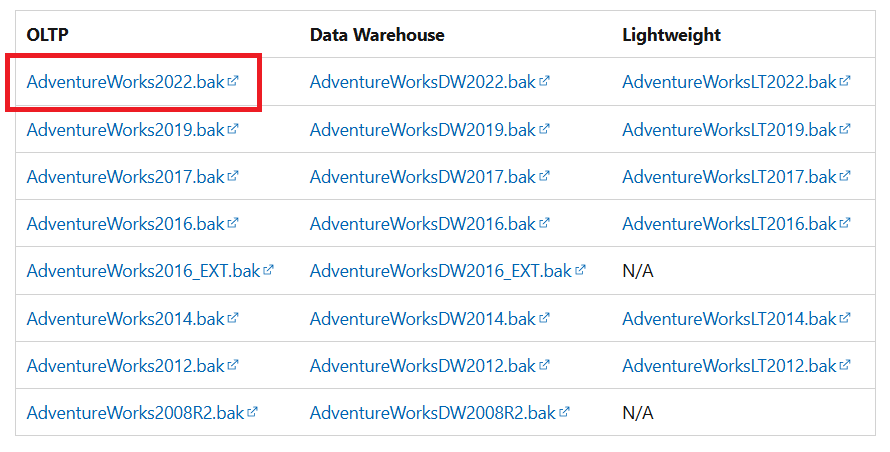
The first step is to download the AdventureWorks database from the official Microsoft website. Head over to the AdventureWorks sample databases page and scroll down to the “Download backup files” section. As you can see, there are multiple versions available. For the purpose of this guide, download the latest online transaction processing (OLTP) version which is “AdventureWorks2022.bak”.
Once downloaded, move the .bak file to your SQL Server’s default backup folder. This path varies depending on your SQL Server version and installation configuration. For a default installation of SQL Server 2022 (16.x), the backup path will likely be:

With the AdventureWorks backup file in place, you can now restore it using SQL Server Management Studio (SSMS). Launch the App from the Start Menu and connect to your SQL Server instance. If you’re unsure how to connect, check out my previous post for a walkthrough.
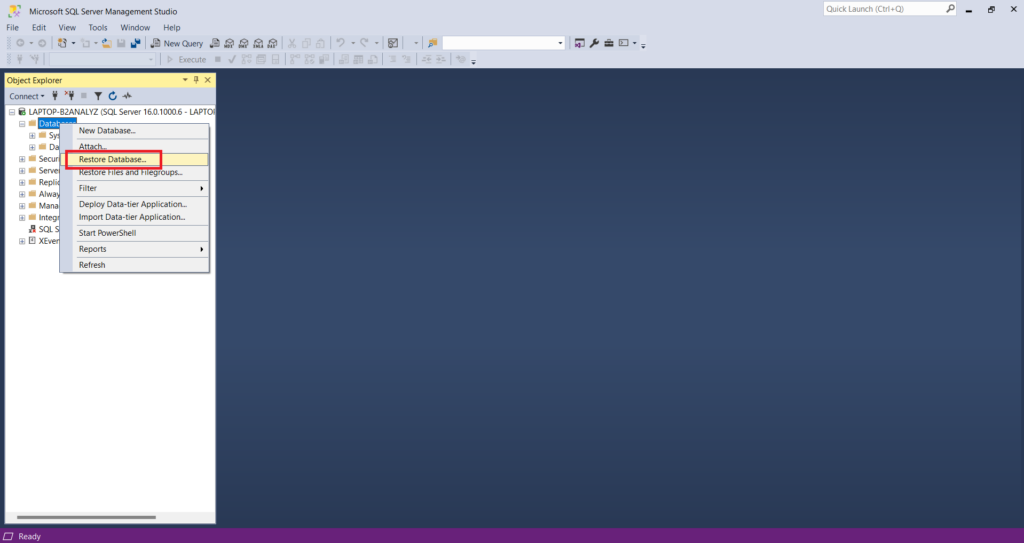
Once connected, navigate to the Object Explorer on the left-hand side. Then right-click on “Databases” and select “Restore Database”. This will open the Restore Database wizard.
In the wizard, select “Device” and click on the three dots (…) next to it. Then click on “Add” and select the AdventureWorks2022.bak file that you downloaded earlier.
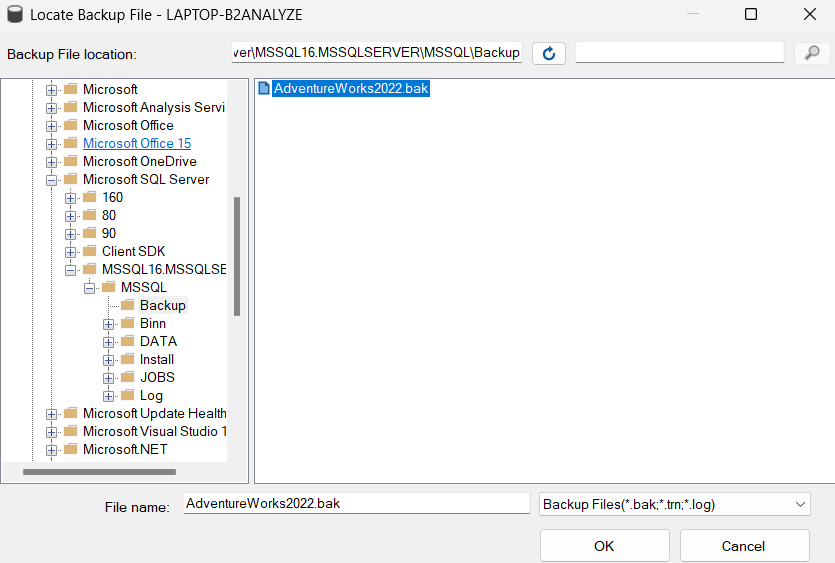
Confirm by clicking “OK” and click “OK” again to confirm the backup file location. This brings you back to the main Restore Database wizard. Click “OK” one more time to initiate the restore process. Once the restore is complete, the AdventureWorks database will appear under Databases in the Object Explorer.
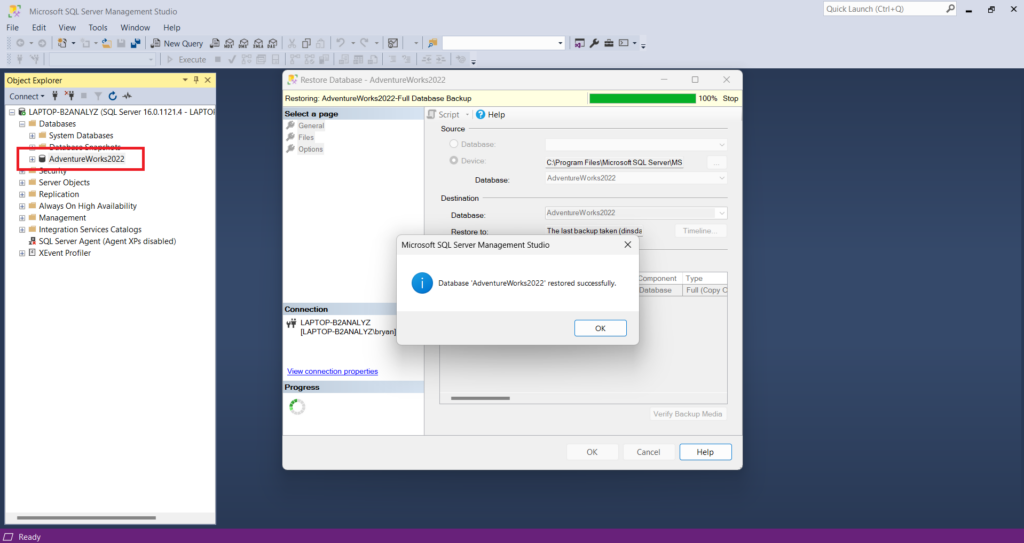
That’s it! You’ve successfully restored the AdventureWorks database to your SQL Server instance. This sample database is a great resource to enhance your SQL skills by querying and analysing the data. In future tutorials, I’ll show you how to write SQL queries to explore the data in AdventureWorks. Stay tuned!

 EN
EN  NL
NL